

Terminology
Certain words are being used across the guide to point to functionalities. It is really good to understand what exactly they mean before moving forward.
Play
Play & Asset is an interchangeable term for this app. A Play is a single entity stored on this tool that a user can maintain, clone, deploy & share easily with point and click.
Pack (BETA)
A Pack is an ordered collection of plays that can be downloaded, validated and deployed together. It points to existing plays and the version of each, so it holds no files of its own. See Packs.
Draft and Live version
The live version of a play or pack is the published one that everyone uses. A draft is a newer version being prepared behind it. See Draft and live versions.
Insights
A card on a play or pack page that highlights what needs attention, such as pending reviews, files common to plays in a pack, or an old API version. See Insights.
Reports & Dashboards
The area where users explore Playground data, save queries as charts or tables, and arrange them on dashboards. See Reports & Dashboards.
Play Detail/Edit Pages
Every Play has a detail & a edit page(depending on if user is owner of the Play) with which Play details can be easily checked, maintained, and deployed.
Play Actions
Every Play has many actions like edit, clone, etc., that can be performed depending upon your role in a particular play. Here is the full list of actions listed.
Play Ratings
Play Ratings are a good way to track the popularity/worthiness of a play. By seeing the right-hand side section of Play Detail, Users can find how often this play viewed, liked, disliked, loved, etc.

User Shortcuts
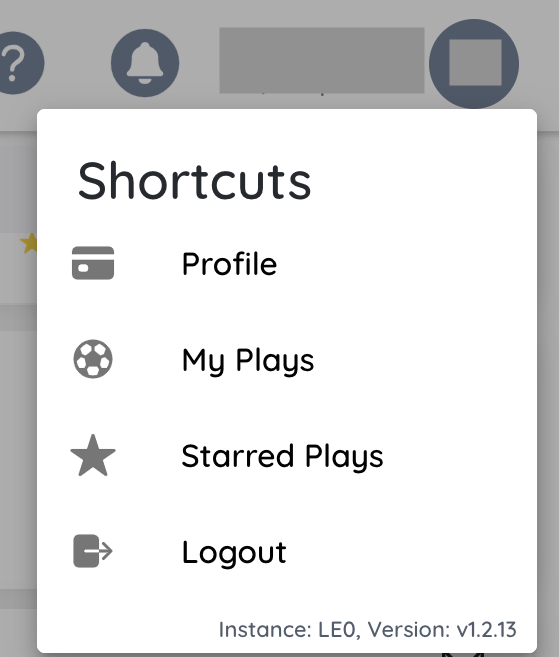
User shortcuts are the user quick actions displayed under user name on top right.
Files Tree
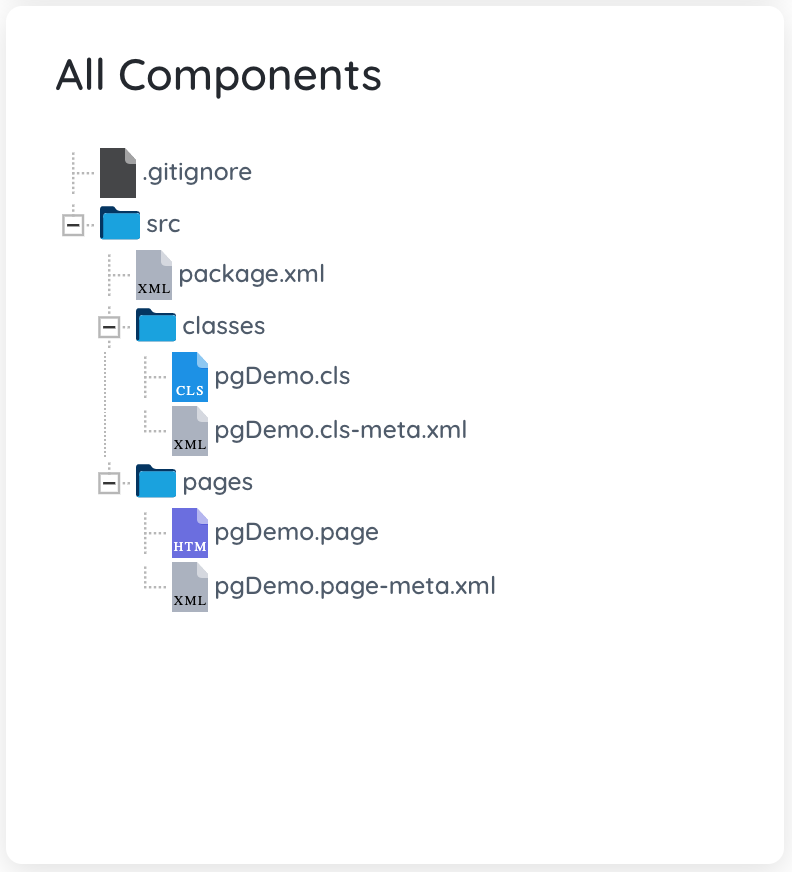
On every Play detail page, there is always a files tree on the left-hand side of the page to show all files(structured in Salesforce metadata fashion) in the solution that will be get deployed in deployments.
Starred Plays
Users can star( in other terms favourite) plays to access them quickly. Under user shortcuts, there is an option to open all starred plays by the user.